Release
October 22, 2026
Themes everywhere: sites, emails and the workspace
Themes belong to the organization: sites, sign-in pages, emails and the workspace follow one theme, with contrast-checked colours.
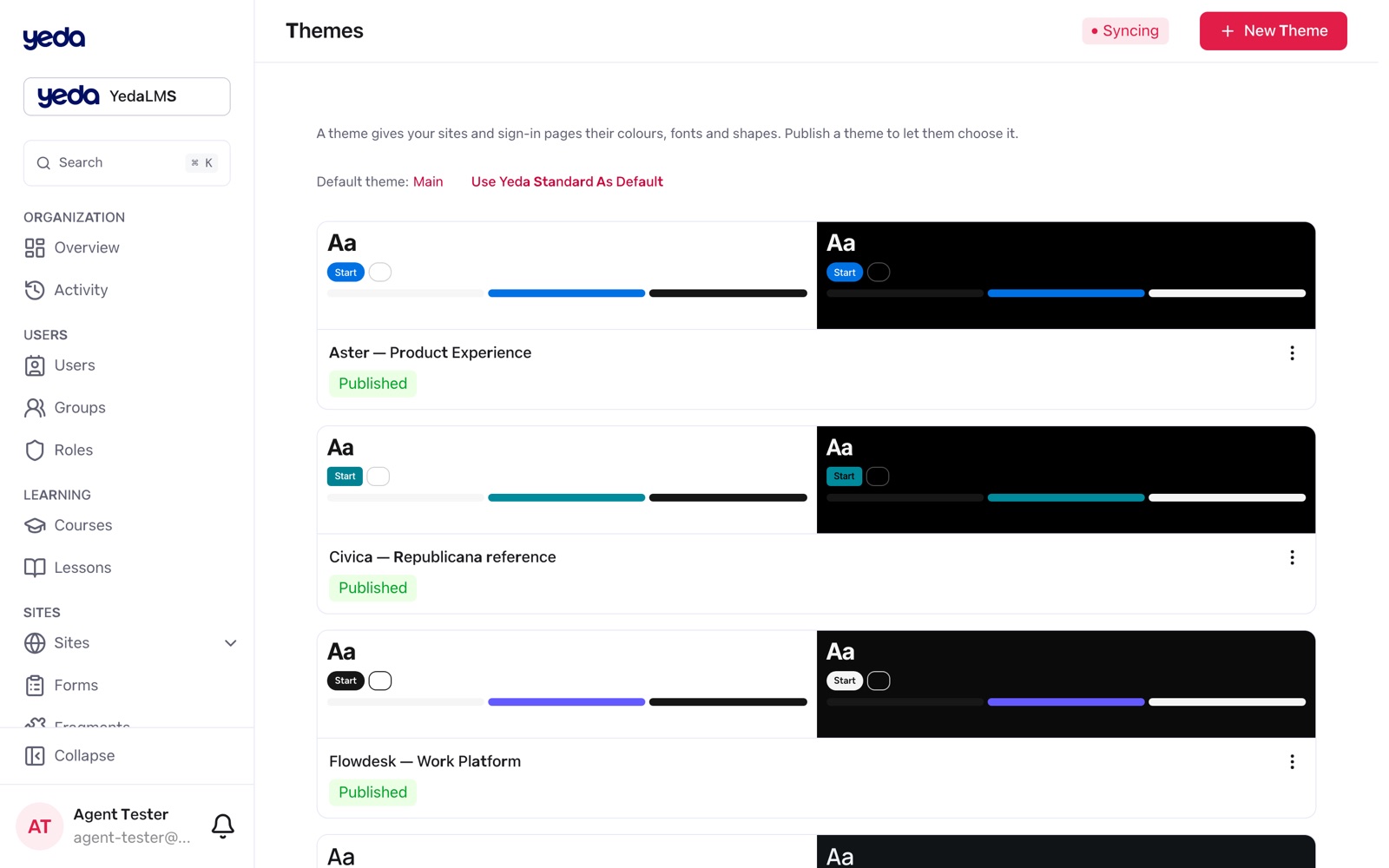
Until now a theme belonged to one website. This release lifts it to the organization: one place to design the look, and every surface that follows it, from the public site to the sign-in page, the emails and the administration workspace.
Organization themes
The new Themes section lists the organization's themes as cards. The editor shows the choices beside a scaled preview of a site and of the sign-in page that stays in view while you scroll. One theme is the organization's default: Make default or Use Yeda standard as default in the library.
A site picks its theme in its Theme tab, a sign-in page beside the logo, and both show "Organization default · name" with a Change link. Existing site themes were adopted automatically, so nothing changed on live sites.
The workspace and the emails follow it
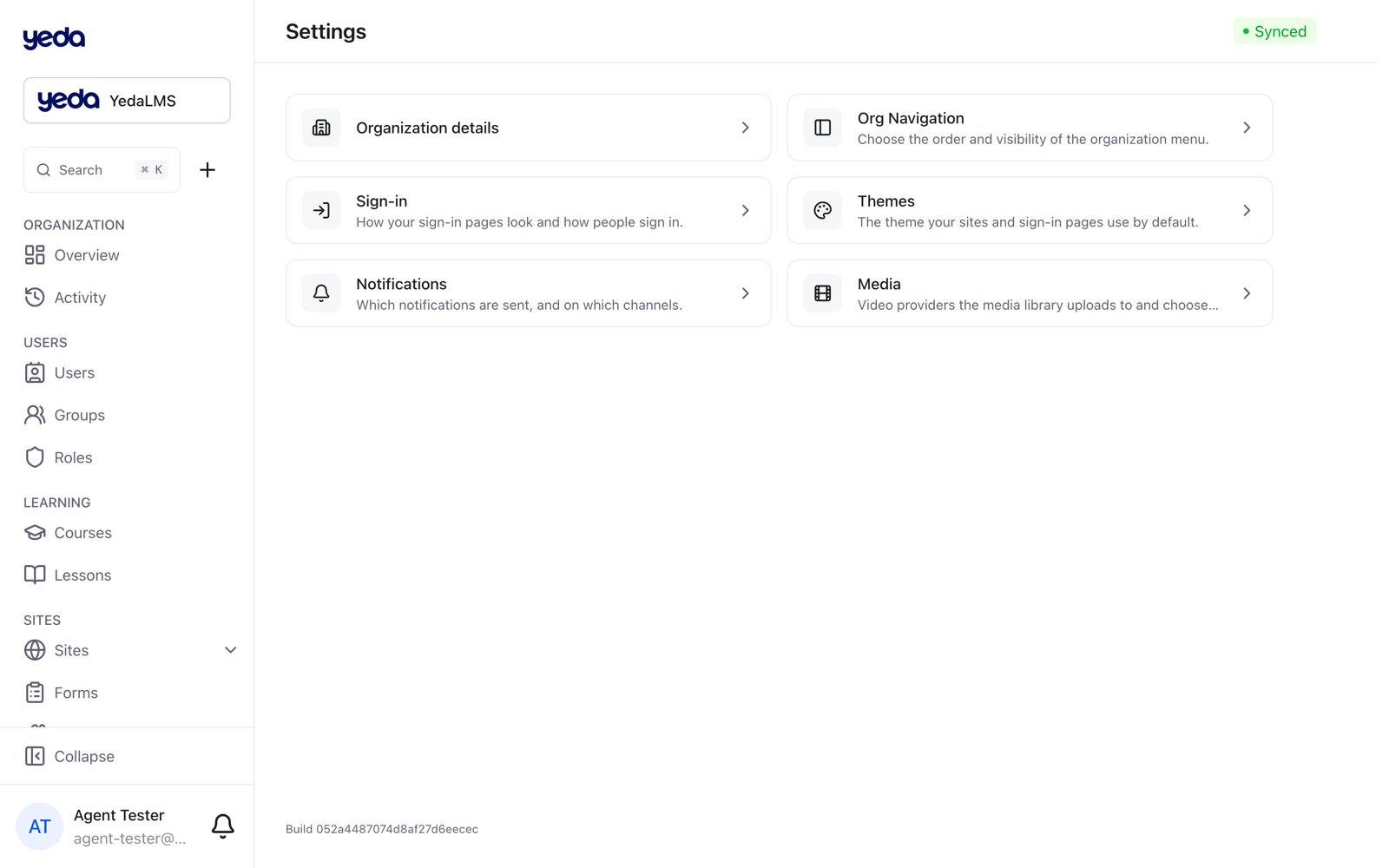
The organization platform itself uses the default theme's brand colour for primary buttons, links, focus rings, active navigation and selected chips, but only where it stays readable, and takes the theme's density (compact or spacious).
Emails, email blocks, layouts and the built-in notification emails are drawn in the organization's default theme: frame, logo, buttons and typography. The email editors say which theme they use, with a link to change it.
Colours from the theme
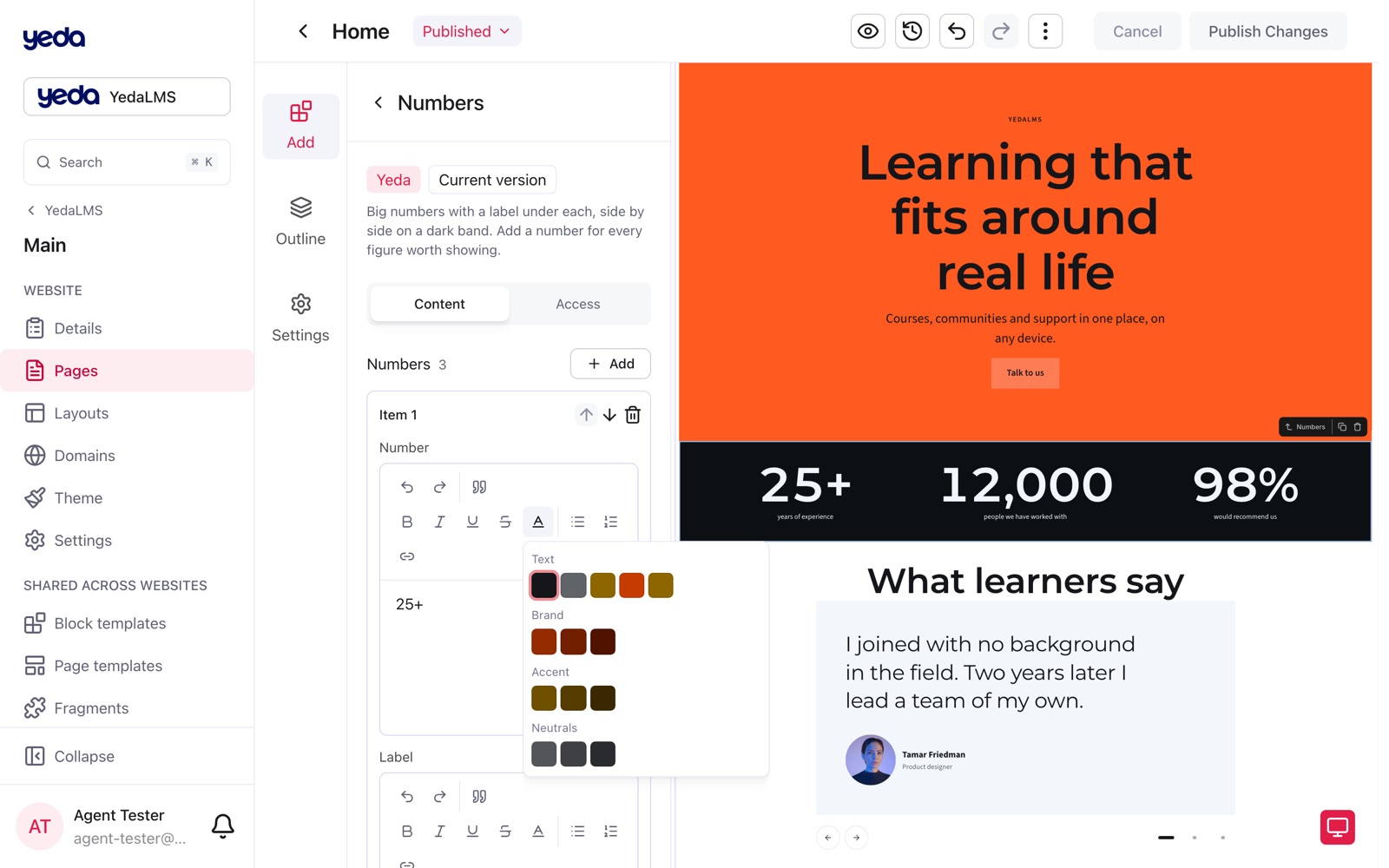
Every block colour comes from the active theme: 16 base roles plus 49 derived ones, including brand, accent and neutral ramps from 50 to 900, analogous, triad and complement harmonies, success, warning and danger, and a heading colour. Text colours are adjusted until they reach 4.5:1 contrast in light and dark mode, so a theme change never leaves unreadable text behind.
One colour picker serves every colour field: a compact row that opens scrolling swatches, with Recent, Custom (hex) and low-contrast swatches marked. Text fields offer only text colours, and text colour is now set per selection from the rich-text toolbar.
Gradients and typography
Gradients start from ready-made ones of the theme; the colours show as chips (add, reverse, exact positions under Advanced) with a direction dial, and a half-finished gradient no longer blocks a save. Section and surface backgrounds take a tone, a gradient, an image or a muted looping video with an overlay.
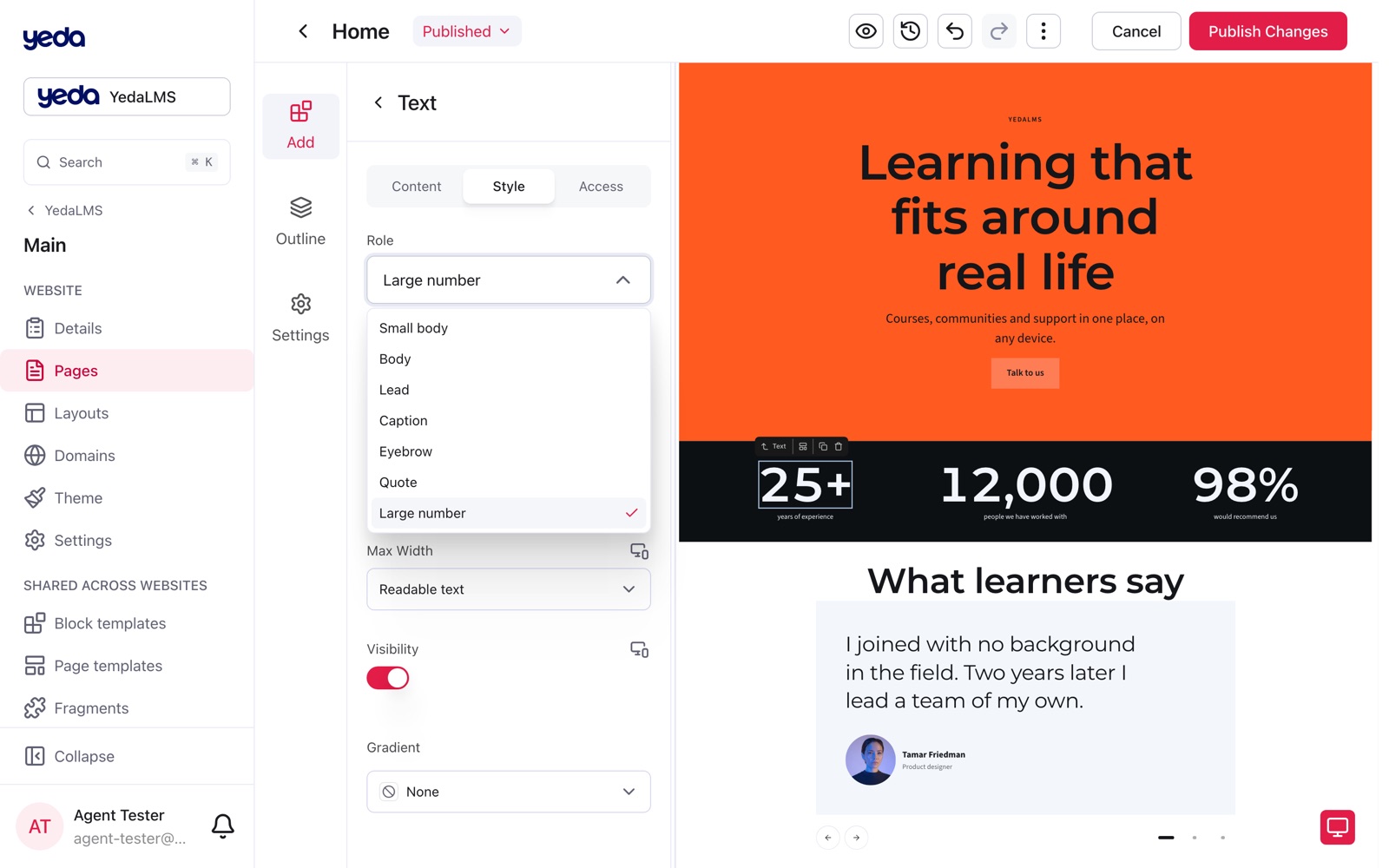
Text and Heading take size, weight and line height from the theme's scale, shown as words such as "Small body" or "Heading 1"; older values offer "Use the theme's typography". Secondary buttons have their own automatic or custom colours, and the theme owns the content width and gutters that blocks may override per device.